Favicon


A favicon /ˈfæv.ɪˌkɒn/ (short for favorite icon), also known as a shortcut icon, website icon, tab icon, URL icon, or bookmark icon, is a file containing one or more small icons, associated with a particular website or web page. A web designer can create such an icon and upload it to a website (or web page) by several means, and graphical web browsers will then make use of it. Browsers that provide favicon support typically display a page's favicon in the browser's address bar (sometimes in the history as well) and next to the page's name in a list of bookmarks. Browsers that support a tabbed document interface typically show a page's favicon next to the page's title on the tab, and site-specific browsers use the favicon as a desktop icon.
– Wikipedia entry on Favicons
The favicon is an often overlooked, pushed to the last minute, component of design online. While subtle, only occupying 16x16 pixels of your browser’s toolbar, favicons are a key component to your website’s identity – helping your website stand out from a crowded set of browser tabs.
For today’s exercise, you’ll create a favicon for your (upcoming) portfolio website to act as a visual extension of your online identity. While it’s up to you how you interpret this, some things to consider may be:
- How do you want to present yourself online? As a designer? An artist? As something else altogether?
- Is this site a representation of you, or your activity in this class? How would your thoughts on this lead to a different design?
- Are you making a personal logo for the browser?
- What are the graphic limitations of this format?
- How does the graphic existing in the tabs bar – which can often be crowded – lead you to a specific design?
Instructions
- In this Figma file copy the placeholder 16×16px and 32×32px into a new section and update it with your name.
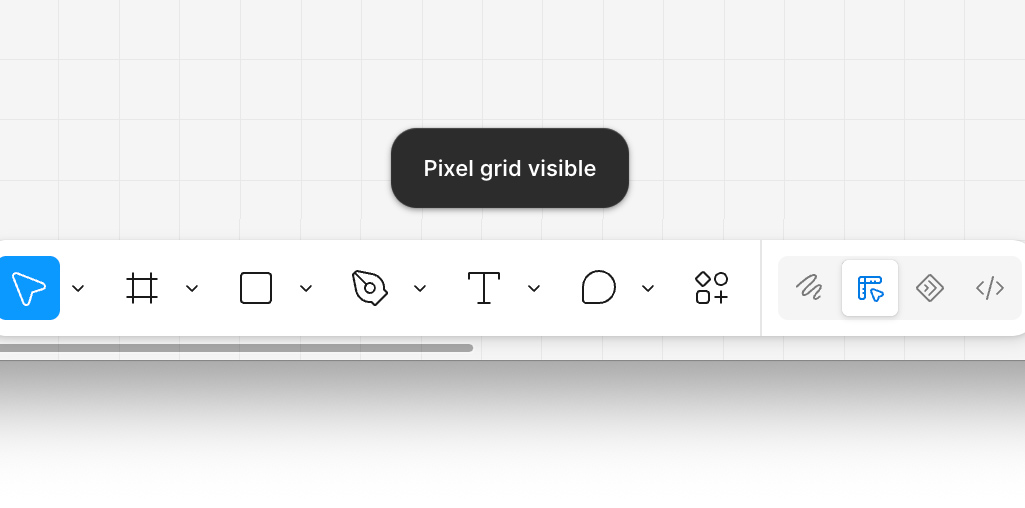
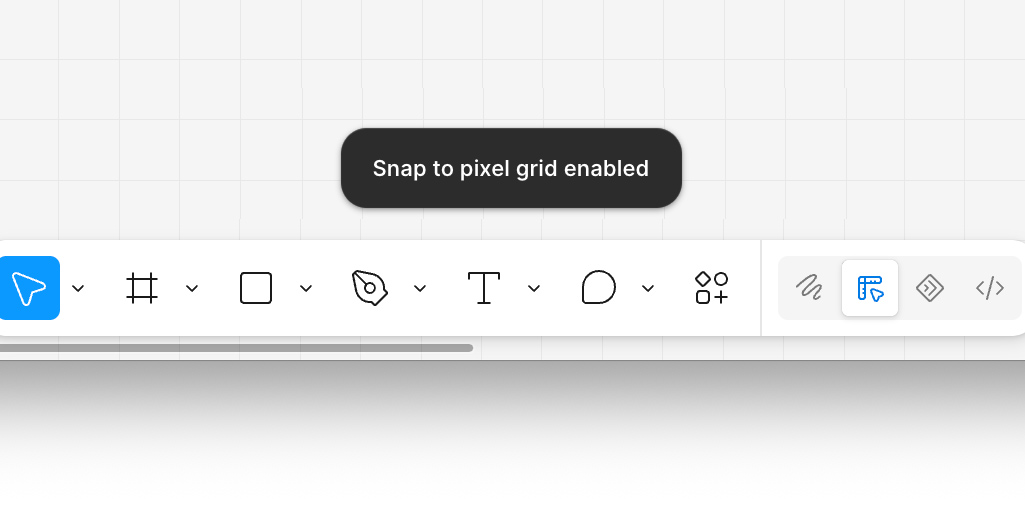
- Design your own favicon with the previous questions in mind. Make sure you have the pixel grid visible, and have "snapped" to pixel grid selected in Figma.
- Export your favicon as a transparent .png file to test on this webpage
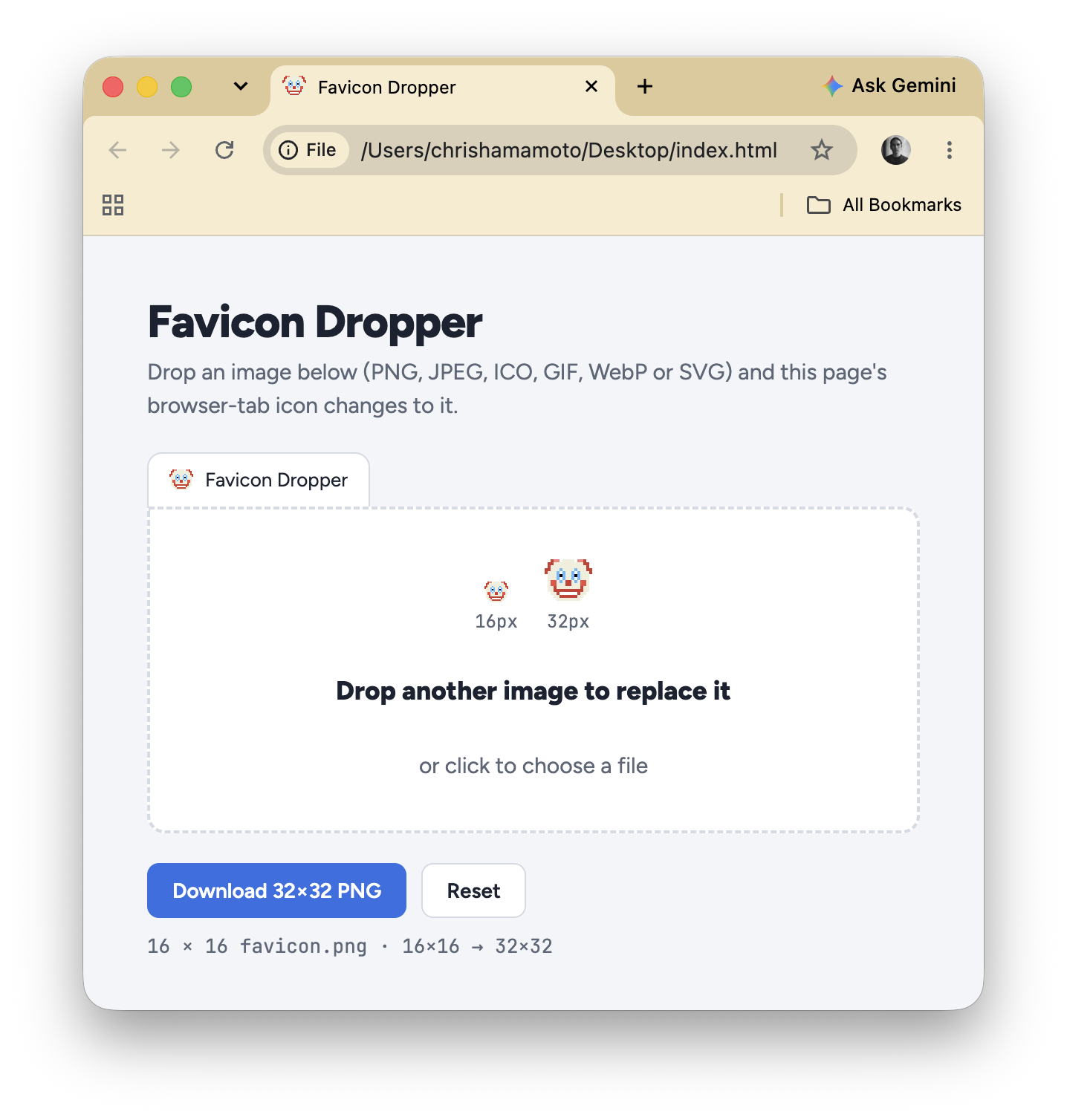
- You may also try reducing the pixel size in photoshop of a higher resolution image since it will automatically anti-alias the image – the process of visually blending colors around pixels so they appear smoother at low resolution
- After you have finalized your design, export it at 16×16px and 32×32px and share in the KakaoTalk Group chat.
Ultimately, I think it is most efficient to design your favicon using a "Favicon Generator" such as an online tool, or using a template in Figma. But, this exercise can give you the best result in your browser tab if you desire precise control. And I think it is a good opportunity to
Resources
For more advanced favicon production, which supports touch devices, and a range of browsers, look at these online tools:
- Real Favicon Generator
- Favicon.io Favicon Generator
- Favicon & Browser Mockup
- Real Favicon Generator (Figma)
For more on favicons in general, check out Wikipedia: